
sip电话机Openvpn 使用及证书生成说明

模块介绍

概述

虚拟专用网 VPN(virtual private network)是在公共网络中建立的安全网络连接,这个网络连接和普通意义上的网络连接不同之处在于,它采用了专有的隧道协议,实现了数据的加密和完整性的检验、用户的身份认证,从而保证了信息在传输中不被偷看、篡改、复制,   从网络连接的安全性角度来看,就类似于在公共网络中建立了一个专线网络一样,只不过这个专线网络是逻辑上的而不是物理的所以称为虚拟专用网。VPN 系统包括 VPN 服务器, VPN 客户机和隧道。由于使用 Internet 进行传输相对于租用专线来说,费用极为低廉,所以 VPN 的出现使企业通过 Internet 既安全又经济的传输私有的机密信息成为可能。
我们介绍的是 Windows 操作系统中利用 OpenVPN 配置 VPN , OpenVPN 是一个开源的第三方虚拟专用网配置工具,可以利用固有设备搭建 VPN 应用网关。

服务器的安装与配置

OpenVPN 是一个开源的第三方虚拟专用网配置工具,可以利用固有设备搭建 VPN 应用网关。以下将分别介绍 Ubuntu、Windows 操作系统下的服务器的部署与配置。

Ubuntu 下搭建OpenVPN 服务器

2.1.1安装 OpenVPN 服务器
在 Ubuntu 下输入以下命令:
sudo apt-get -y install openvpn libssl-dev openssl
sudo apt-get -y install easy-rsa
2.1.2证书制作
按照以下步骤执行命令生成 OpenVPN 正常运行所需要的证书初始化配置:
sudo mkdir /etc/openvpn/easy-rsa/
sudo cp -r /usr/share/easy-rsa/* /etc/openvpn/easy-rsa/
sudo su
sudo vi /etc/openvpn/easy-rsa/vars
----->按照需要可以修改证书配置如下:
export KEY_COUNTRY=”CN”
export KEY_PROVINCE=”BJ”
export KEY_CITY=”BeiJing”
export KEY_ORG=”fanvil”
export KEY_EMAIL=”fanvil@fanvil.com”
export KEY_OU=”fanvil”
export KEY_NAME=”server”
运行 vars:                                   source vars
如果第一次运行清空所有:          ./clean-all
生成 CA 证书:                            ./build-ca
生成服务器证书:                        ./build-key-server server
生成客户端证书:                        ./build-key client
产生动态密码库.                        ./build-dh

启动服务器

服务器环境配置,将相应的证书配置文件放入指定的目录:
cp keys/ca.crt /etc/openvpn/
cp keys/server.crt keys/server.key keys/dh2048.pem /etc/openvpn
mv /etc/openvpn/dh2048.pem /etc/openvpn/dh1024.pem
cp keys/client.key keys/client.crt   /etc/openvpn/
cp /usr/share/doc/openvpn/examples/sample-config-files/server.conf.gz /etc/openvpn/
cd /etc/openvpn
gzip -d server.conf.gz
cp /usr/share/doc/openvpn/examples/sample-config-files/client.conf /etc/openvpn/
启动服务器:
/etc/init.d/openvpn restart

Windows 下搭建OpenVPN 服务器

2.3.1安装 OpenVPN 服务器
在网上搜索下载 Windows 版的 OpenVpn 软件。本篇搭建使用的是 openVPN GUI;双击下载软件进行默认安装,注意勾选安装 easy-rsa 配件。默认路径是 C:\Program Files\OpenVPN。
2.3.2证书制作
在进行操作之前,首先要进行初始化工作:
请根据自身情况修改 C:\Program Files\OPENVPN\easy-rsa\vars.bat.sample 的以下部分
set HOME=C:\Program Files\OPENVPN\easy-rsa
set KEY_COUNTRY=CN                                  #(国家)
set KEY_PROVINCE=BEIJING                        #(省份)
set KEY_CITY= BEIJING                                 #(城市)
set KEY_ORG=WINLINE                                 #(组织)
set KEY_EMAIL=admin@winline.com.cn        #(邮件地址)
上面#开始的是注释,请不要写到文件中。
以管理员权限打开 cmd 进入 DOS,执行下列命令进入
openvpn\easy-rsa 目录:
                               init-config
                               vars
                               clean-all
生成根证书:                                           build-ca(一路回车按照缺省配置生成即可)
产生动态密码库:                                    build-dh
生成服务器证书:                                    build-key-server server(一路回车按照缺省配置生成即可)
生成客户端证书:                                    build-key client (一路回车按照缺省配置生成即可)
2.3.3启动服务器
生成的均密钥存放于 OpenVPN\easy-rsa\keys 目录下
将生成的证书拷贝到 OpenVPN\config 目录下
将 OpenVPN\sample-config 下的服务器配置文件拷贝到 OpenVPN\config 目录下启动 OpenVPN 应用程序即可

服务器端配置

在 OpenVPN 的安装目录下,使用 notepad++ 打开 server.ovpn 或者 server.conf 文件查看服务器端文件示例如下:
port 1194 #这个端口是 IANA 为 OpenVPN 分配的指定端口,可以根据需要自行修改
proto udp #可以选用 tcp
dev tun
ca ca.crt
cert server.crt
key server.key
dh dh1024.pem
server 10.8.0.0 255.255.255.0 # 虚拟局域网网段设置,请根据需要自行修改
ifconfig-pool-persist ipp.txt
keepalive 10 120
client-to-client
comp-lzo
max-clients 100
persist-key
persist-tun
status openvpn-status.log
verb 3
更多详细介绍可以参考 OpenVPN Wiki

客户端使用与配置

客户端配置

这里的客户端针对的是我们支持 OpenVPN 的设备, 为了让我们的话机能够连接到OpenVPN 服务器,我们需要证书文件。
首先需要针对客户端的配置文件 client.ovpn 或者 client.conf 进行编辑修改,客户端配置文件示例如下:
client
dev tun
proto udp
remote 192.168.1.135 1194 #服务器域名/IP 和端口
resolv-retry infinite
nobind
persist-key
persist-tun
ca ca.crt
cert client.crt
key client.key comp-lzo
verb 3
可以结合服务器端的配置进行相关修改。
其次将我们之前制作好的客户端文件 ca.crt、client.crt、client.key 导出来在话机升级时使用。

话机使用 OpenVPN

登陆话机网页,依次点击网络->VPN,在 OpenVPN 文件栏逐个升级 client.ovpn, client.key, client.crt, ca.crt。升级完成后,OpenVPN 文件栏会有升级进入的证书文件大小显示,如下所示
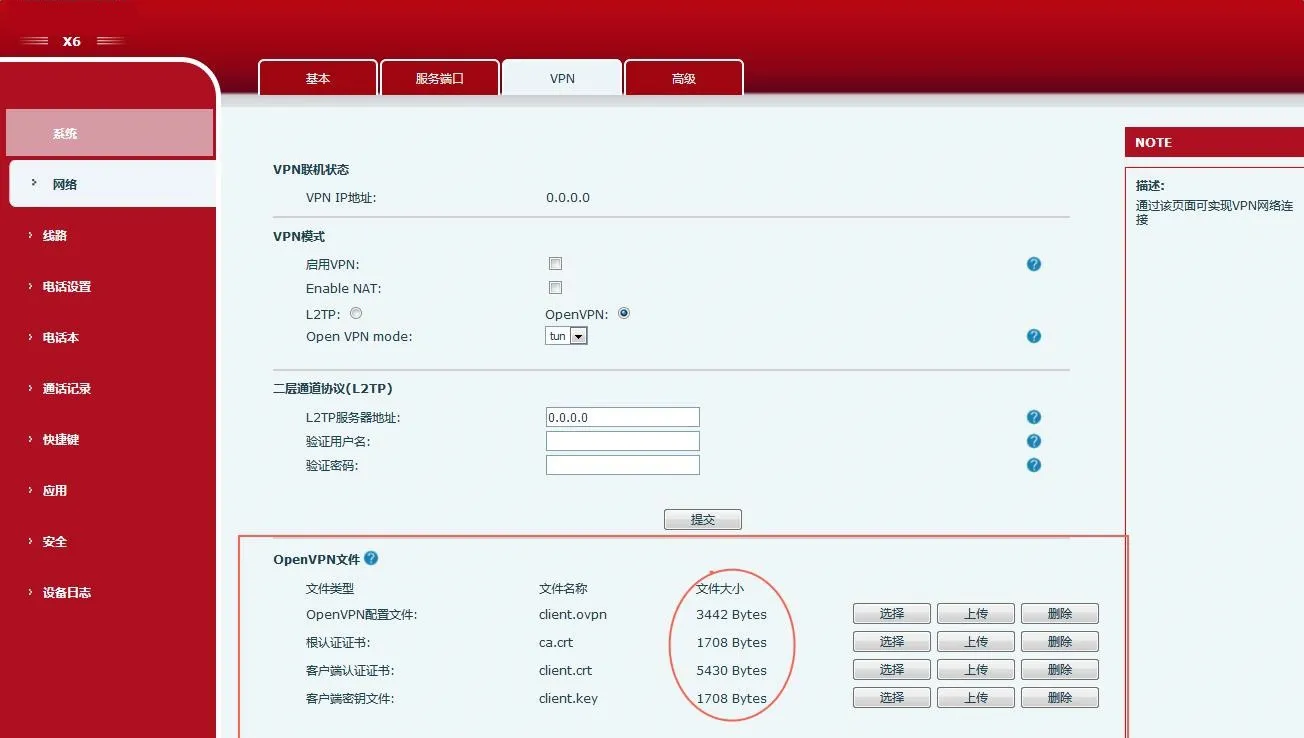
升级OpenVPN 文件打开 VPN 配置页面,在 VPN 模式选择 Open VPN,同时启用 VPN,点击提交按钮。当成功连接服务器之后,会在 VPN 页面的 VPN 联机状态一栏中显示获得的 IP 地址,如下图所示,获得得 IP 为 10.8.0.10。
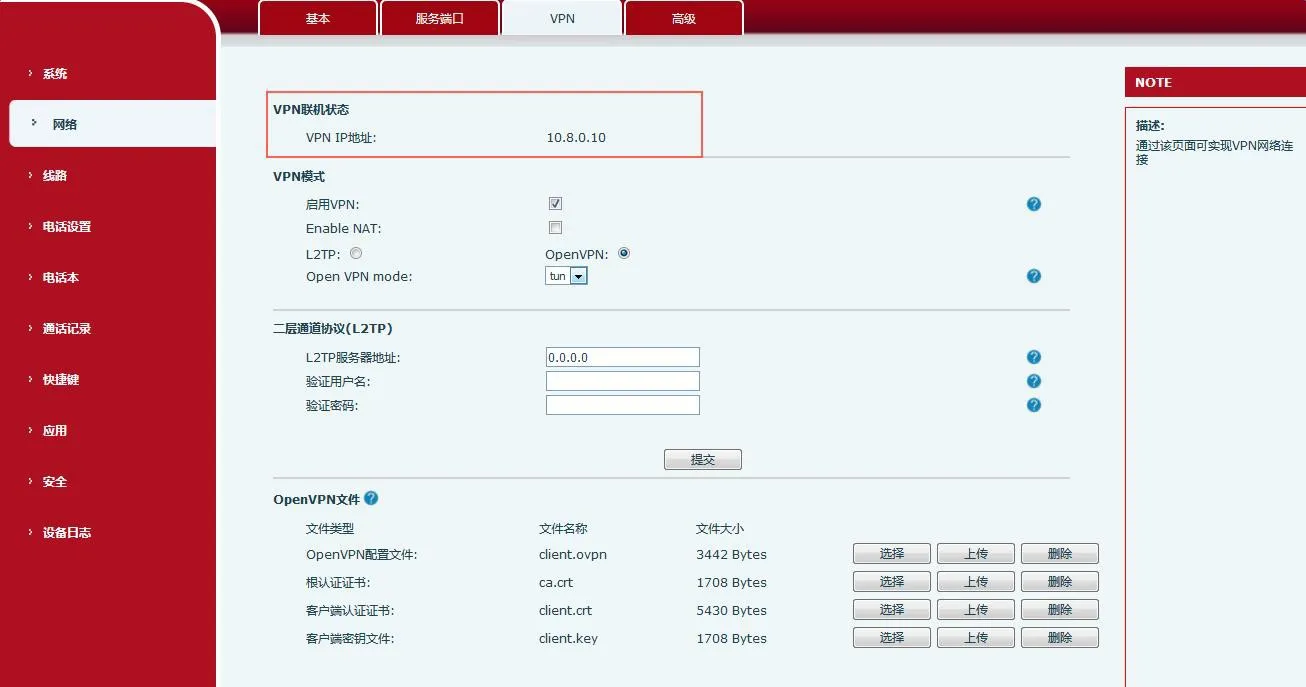
打开VPN配置界面

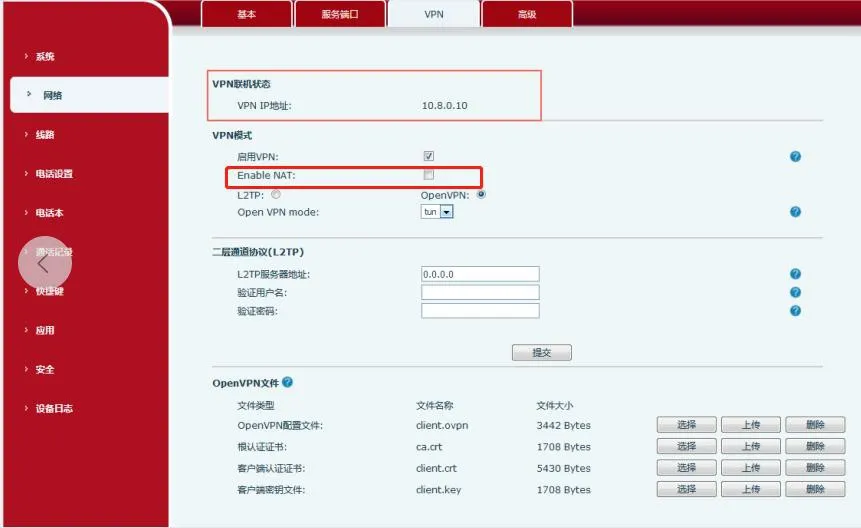
开启 VPN NAT

开启 VPN NAT界面
使用方法:
话机导入 vpn 证书,开启 Enable VPN 和 Enable NAT,PC(网关需要设置为话机的 ip)连接话机 lan 口,此时 PC 能够访问话机的 VPN。
PC ping10.8.0.10 可以 ping 通,ping www.baidu.com 也可以 ping 通(10.8.0.10 是 VPN IP 地址)
注: 目前支持机型 J3G/X3U/X3SG/J1P 以及 X5S/X6/X7/X7C/X210/X210i;话机X3S/X4/X7 暂不支持

目录
客服 电话
We use cookie to improve your online experience. By continuing to browse this website, you agree to our use of cookie.

Cookies

This Cookie Policy explains how we use cookies and similar technologies when you access or use our website and related services. Please read this Policy together with our Terms and Conditions and Privacy Policy so that you understand how we collect, use, and protect information.

By continuing to access or use our Services, you acknowledge that cookies and similar technologies may be used as described in this Policy, subject to applicable law and your available choices.

Updates to This Cookie Policy

We may revise this Cookie Policy from time to time to reflect changes in legal requirements, technology, or our business practices. When we make updates, the revised version will be posted on this page and will become effective from the date of publication unless otherwise required by law.

Where required, we will provide additional notice or request your consent before applying material changes that affect your rights or choices.

What Are Cookies?

Cookies are small text files placed on your device when you visit a website or interact with certain online content. They help websites recognize your browser or device, remember your preferences, support essential functionality, and improve the overall user experience.

In this Cookie Policy, the term “cookies” also includes similar technologies such as pixels, tags, web beacons, and other tracking tools that perform comparable functions.

Why We Use Cookies

We use cookies to help our website function properly, remember user preferences, enhance website performance, understand how visitors interact with our pages, and support security, analytics, and marketing activities where permitted by law.

We use cookies to keep our website functional, secure, efficient, and more relevant to your browsing experience.

Categories of Cookies We Use

Strictly Necessary Cookies

These cookies are essential for the operation of the website and cannot be disabled in our systems where they are required to provide the service you request. They are typically set in response to actions such as setting privacy preferences, signing in, or submitting forms.

Without these cookies, certain parts of the website may not function correctly.

Functional Cookies

Functional cookies enable enhanced features and personalization, such as remembering your preferences, language settings, or previously selected options. These cookies may be set by us or by third-party providers whose services are integrated into our website.

If you disable these cookies, some services or features may not work as intended.

Performance and Analytics Cookies

These cookies help us understand how visitors use our website by collecting information such as traffic sources, page visits, navigation behavior, and general interaction patterns. In many cases, this information is aggregated and does not directly identify individual users.

We use this information to improve website performance, usability, and content relevance.

Targeting and Advertising Cookies

These cookies may be placed by our advertising or marketing partners to help deliver more relevant ads and measure the effectiveness of campaigns. They may use information about your browsing activity across different websites and services to build a profile of your interests.

These cookies generally do not store directly identifying personal information, but they may identify your browser or device.

First-Party and Third-Party Cookies

Some cookies are set directly by our website and are referred to as first-party cookies. Other cookies are set by third-party services, such as analytics providers, embedded content providers, or advertising partners, and are referred to as third-party cookies.

Third-party providers may use their own cookies in accordance with their own privacy and cookie policies.

Information Collected Through Cookies

Depending on the type of cookie used, the information collected may include browser type, device type, IP address, referring website, pages viewed, time spent on pages, clickstream behavior, and general usage patterns.

This information helps us maintain the website, improve performance, enhance security, and provide a better user experience.

Your Cookie Choices

You can control or disable cookies through your browser settings and, where available, through our cookie consent or preference management tools. Depending on your location, you may also have the right to accept or reject certain categories of cookies, especially those used for analytics, personalization, or advertising purposes.

Please note that blocking or deleting certain cookies may affect the availability, functionality, or performance of some parts of the website.

Restricting cookies may limit certain features and reduce the quality of your experience on the website.

Cookies in Mobile Applications

Where our mobile applications use cookie-like technologies, they are generally limited to those required for core functionality, security, and service delivery. Disabling these essential technologies may affect the normal operation of the application.

We do not use essential mobile application cookies to store unnecessary personal information.

How to Manage Cookies

Most web browsers allow you to manage cookies through browser settings. You can usually choose to block, delete, or receive alerts before cookies are stored. Because browser controls vary, please refer to your browser provider’s support documentation for details on how to manage cookie settings.

Contact Us

If you have any questions about this Cookie Policy or our use of cookies and similar technologies, please contact us at support@becke.cc .